Everything you need to know about the new Adobe Photoshop AI
Adobe Creative Cloud is one of the pioneers in the field of editing software for images, video, audio and more. It is therefore hardly surprising that Adobe is also advancing its capabilities in artificial intelligence and providing its users with an ever-increasing range of AI tools. The latest Photoshop beta is currently the talk of the town; it allows you to replace parts of an image using AI, create them artificially or even invent new ones. We’ve summarised everything you need to know.
AI image editing by Adobe
Much like Midjourney or Artbreeder, Adobe already offers an AI image generation tool: Firefly. This is accessible via any browser and allows users to edit and generate images using various tools. The latter works in a similar way to other AI programmes. The desired image is described in text form, and four sample images are generated straight away. It is possible to customise these. Choose between different formats and styles, or adjust the colour and lighting settings. Firefly has been trained using images from the Adobe Stock database, which, according to Adobe, means the generated images can be used commercially without any concerns.
Firefly AI in Photoshop
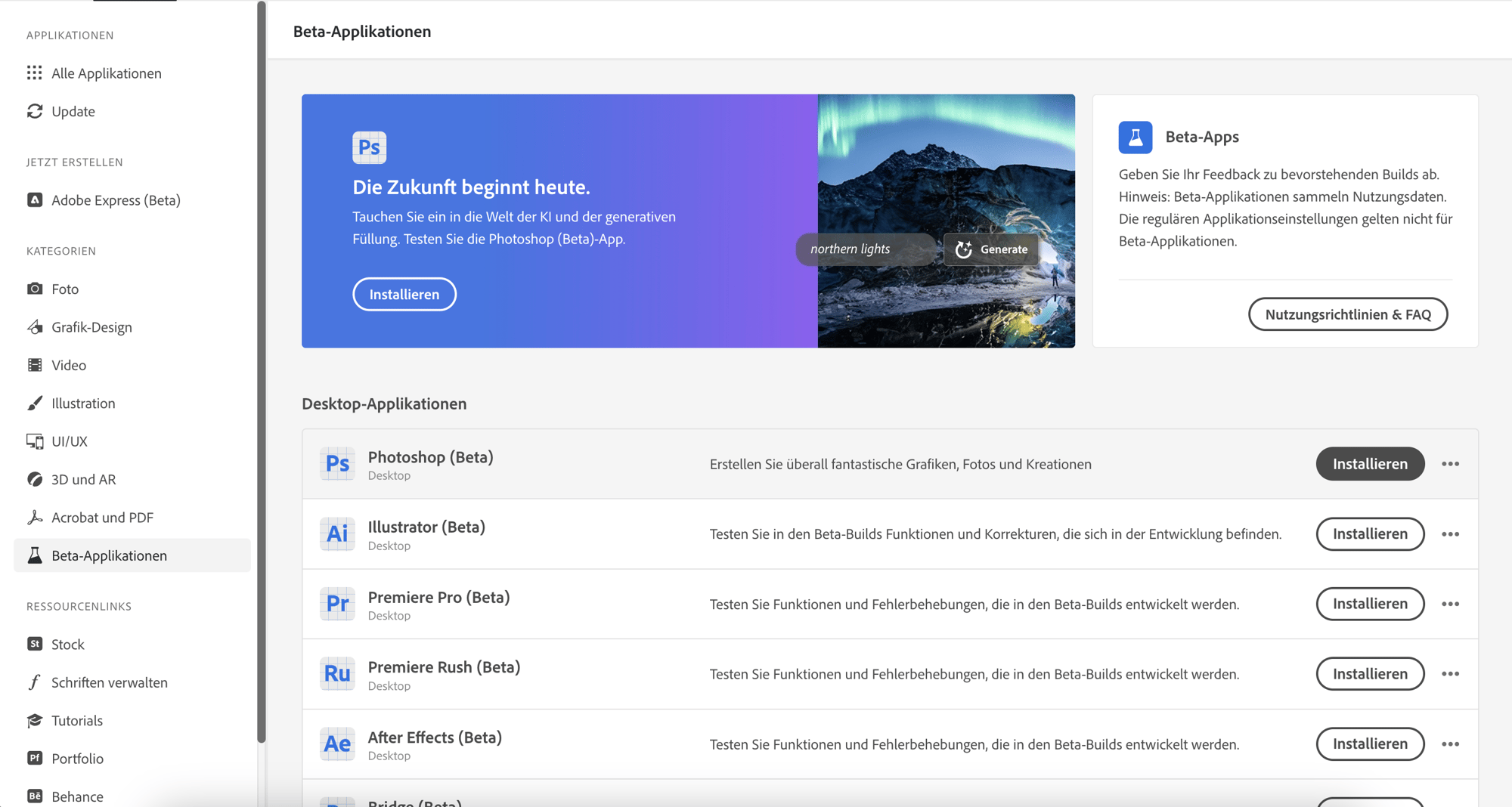
Adobe has recently integrated Firefly’s AI technology into its own Photoshop software. This is currently available as a beta version, but can be easily installed by anyone with a subscription via the Creative Cloud desktop app. When you install it, the beta feature isn’t added to the main application; instead, you’ll receive a separate Photoshop Beta application. The AI processing takes place via the Adobe Cloud rather than locally. So the better your internet connection, the better and faster the processing will be.
How can I use AI in Photoshop?
Whenever you make a selection in the beta version, the ‘Generate’ button pops up at the bottom of the editing bar. This little button is your gateway to magic. There are a few areas where the AI can be more than just helpful – and does a brilliant job at that. We’ve summarised a few for you:
- Add image elements: With the AI, you can have parts of an image superimposed onto your existing image. To do this, use the selection rectangle to mark the desired position, click on ‘Generate’, describe what you’d like in the text field, and in no time at all, for example, an elephant will be standing next to you. You can always choose between three different variants in the right-hand control panel and try them out individually.
- Replace and swap image elements: Does the dog in your image need to be wearing a baseball cap rather than a fisherman’s hat? As soon as you drag a selection rectangle over the cropped area, the control bar will reappear at the bottom. Click ‘Generate’ again, type your request into the field, and you’ll then receive your customised design!
- From portrait to landscape: Everyone has taken a portrait-oriented photo at some point, but actually needed it in landscape format. The AI makes it possible to ‘invent’ the missing sides to create a landscape format. To do this, place your chosen image onto a workspace in the correct format, select the white areas and choose ‘Generate’ without needing to enter any further instructions into the command bar. Photoshop will then generate the missing parts for you, and you’ll be able to use the image in landscape format straight away.
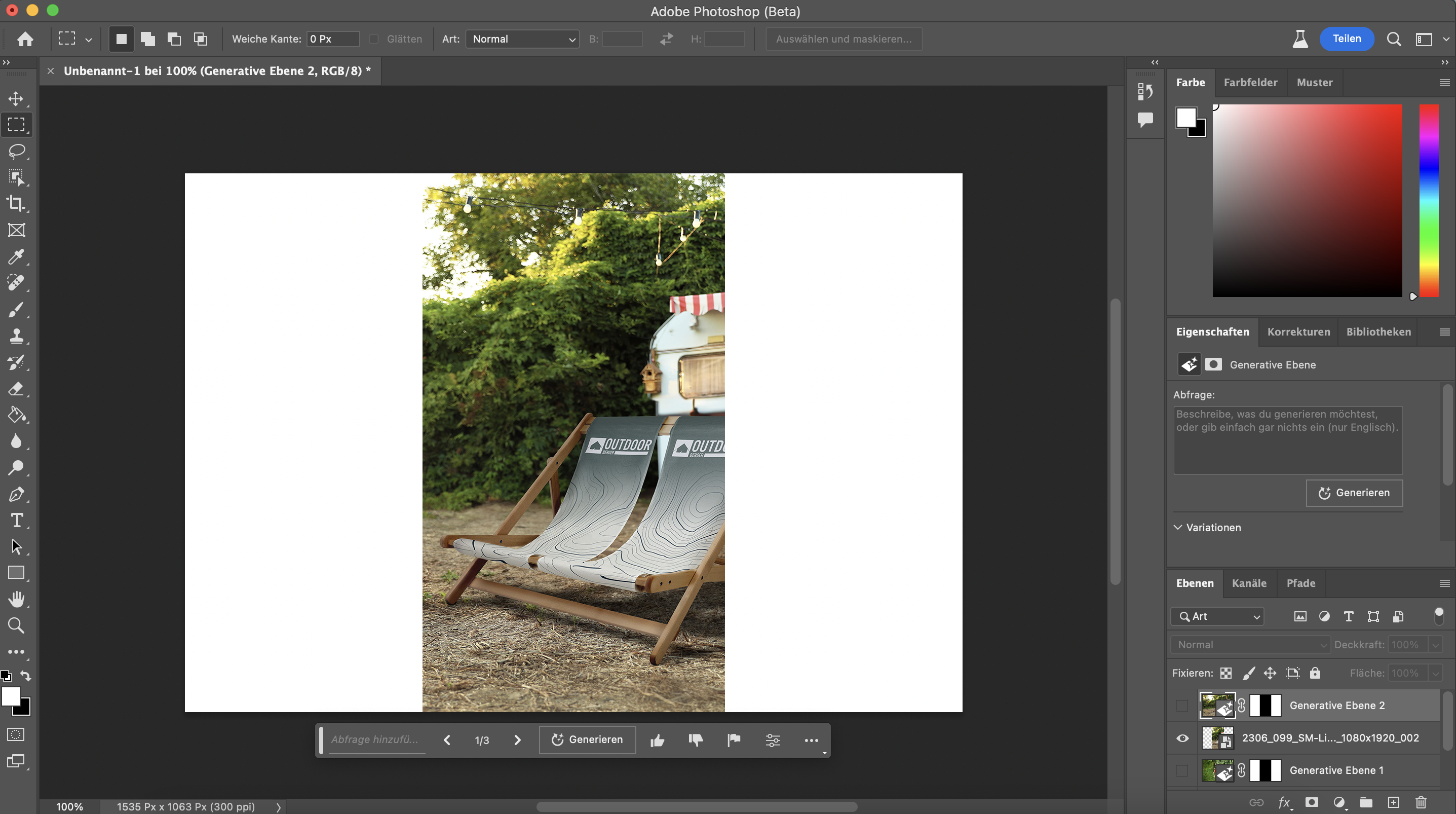
Portrait-oriented image opened in Photoshop
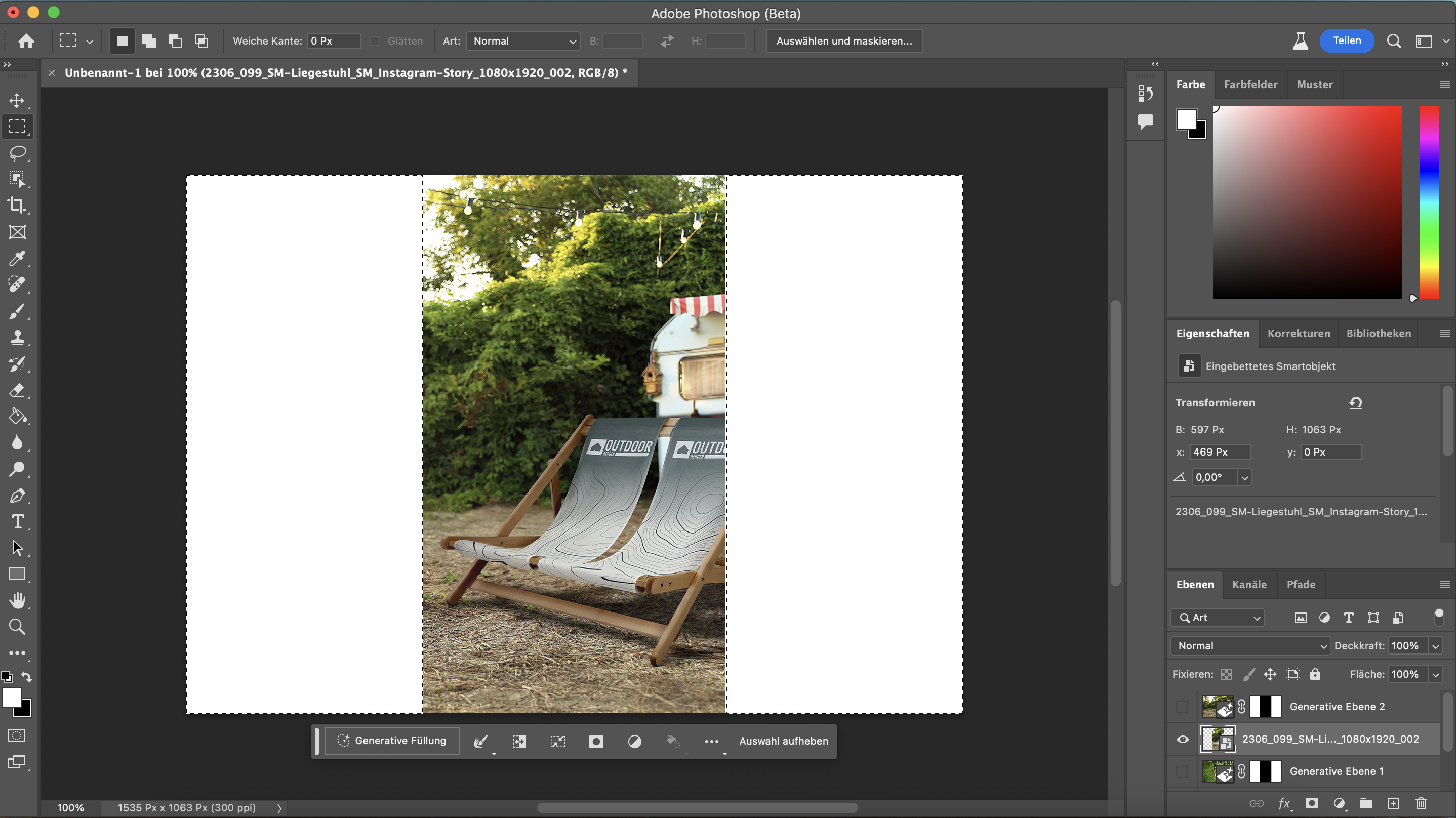
White sidebars in the selection
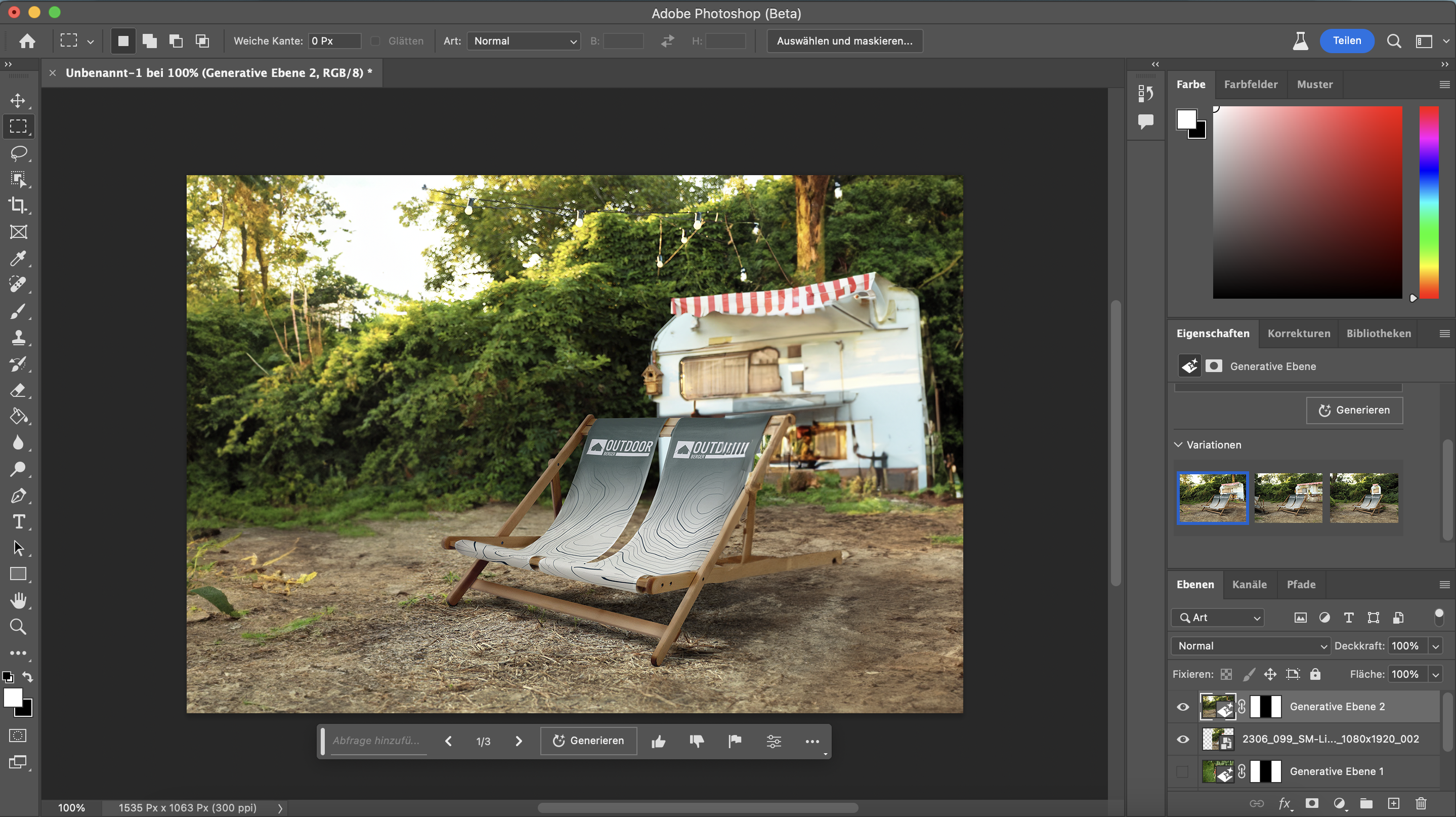
What can Photoshop’s AI do? not?
As with all current AI tools, Adobe’s AI is not perfect. Particularly when it comes to people, animals or other lifelike images, the result is rarely flawless or entirely accurate. So, if you look closely, you’ll notice that this is an AI-generated image. However, experience has shown that AI tools learn as they go and improve on the finer details from time to time. In addition, the AI also struggles with generating text within images. So if you want to have a sign made with your name on it, the results will probably be illegible.
That said, Adobe imposes certain restrictions within the Photoshop AI. For example, no real people, such as celebrities or the like, can be included. The AI also ignores ‘vulgar’ or ‘dangerous’ terms, such as ‘knife’, ‘weapon’ or ‘pistol’, and displays an error message. However, this should (hopefully) not restrict anyone in their day-to-day work ;-)
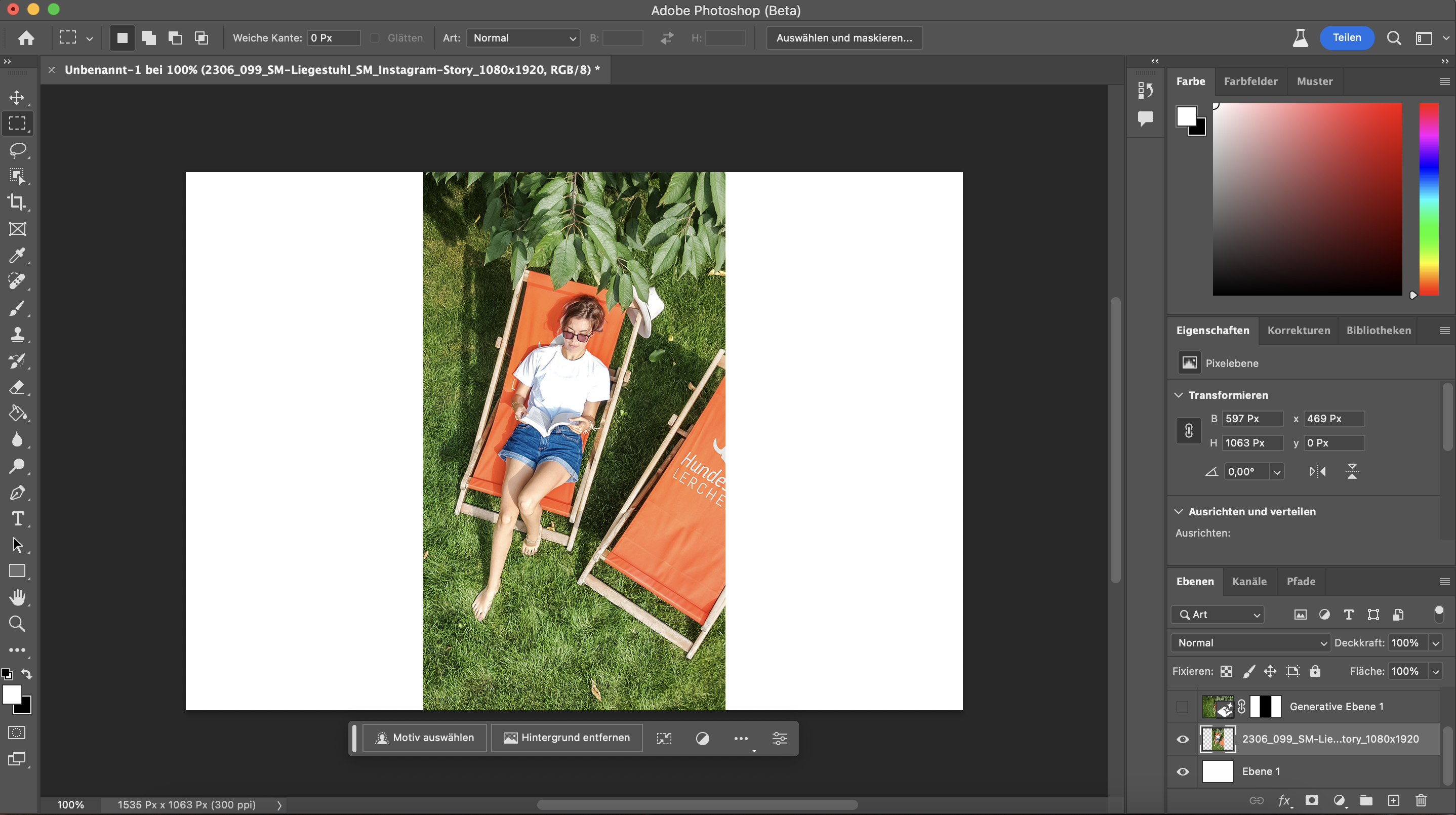
Portrait-oriented image opened in Photoshop
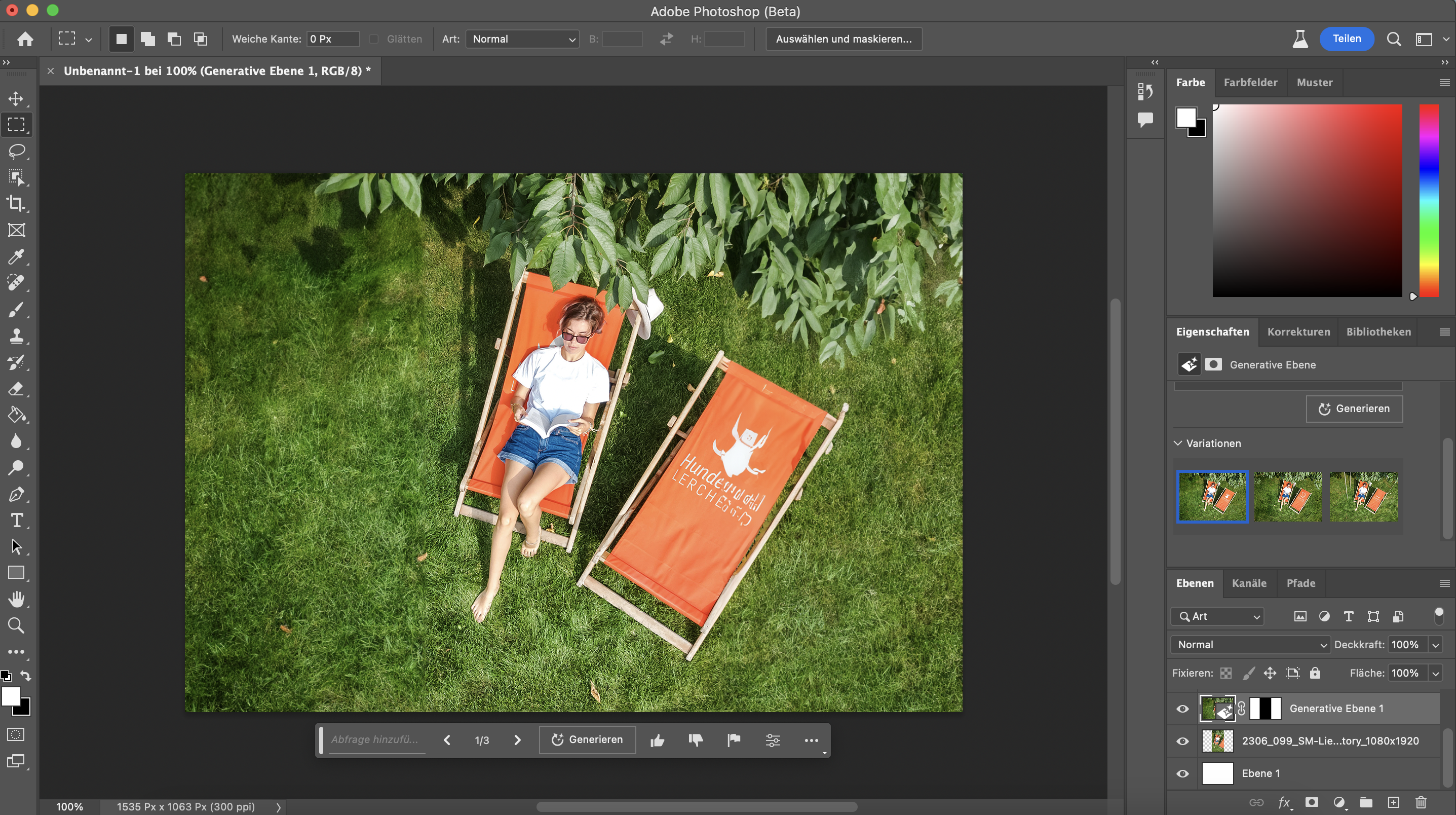
AI-generated page sections in landscape format; text not legible
A helping hand with photo printing
Before the print data for photo printing is prepared, post-processing is often required. Photoshop’s AI opens up entirely new possibilities in this regard. Whether it’s a self-designed Photo calendar, a personalised Canvas or a durable Photo mug – Artificial intelligence helps to enhance and customise images. To hold the perfect image in your hands or give it as a gift to your loved ones, we offer countless possibilities. Let yourself be inspired by the druck.at photo gifts Inspire.
More on the topic of AI
Would you like to find out more about artificial intelligence? We’ve got plenty more blog posts in store covering topics such as ChatGPT, AI-generated images and more. Have a read now!