The 5 most common mistakes when creating print data

Print data are the The centrepiece of every print project. You decide whether your design is razor-sharp, correctly coloured and cleanly implemented. For this blog post, we sat down with our team from the customer centre and discussed the frequent stumbling blocks summarised for you during print data creation. So here you will find the 5 most common errors in print data and the most important questions and answers on the subject.
1 | The basics first: print data and print-ready files
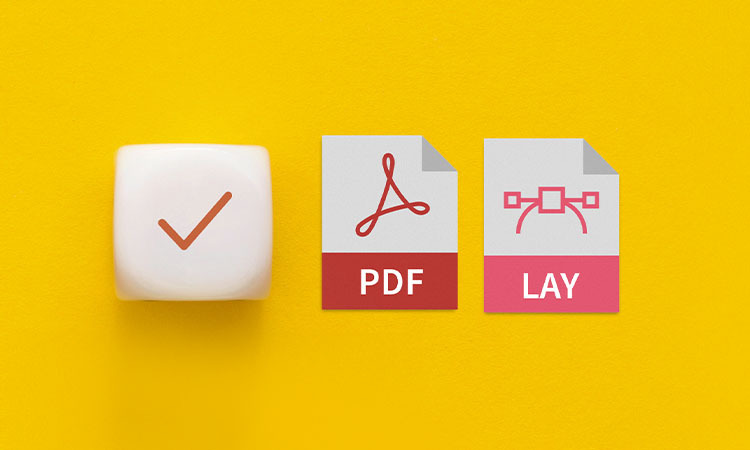
Print data refers to all files that are processed directly by the print shop in order to produce a product - i.e. print-ready files for production. This includes layouts, images, texts and special effects such as finishes or contour cuts. The ideal file is a PDF.
Open print data, on the other hand, are files that can still be edited in programmes such as InDesign, Illustrator, Scribus and others. They often have to be converted into print-ready formats first, as many print shops cannot send this open data directly to print. Files from Word, PowerPoint, Excel or Photoshop also very often lead to display errors. Fonts shift, colours are incorrect or content is missing completely.
Checklist for print-ready files:
- Always use print-ready data and ideally export your print data as a PDF or vector graphic. You can find out how to create a vector graphic in our blog post "What are good vector graphics"
- Avoid open data such as Word, PowerPoint or Publisher files
- Attention: Guide lines from the templates must not be exported, otherwise they may be printed.
2 | Info sheets and templates are overlooked
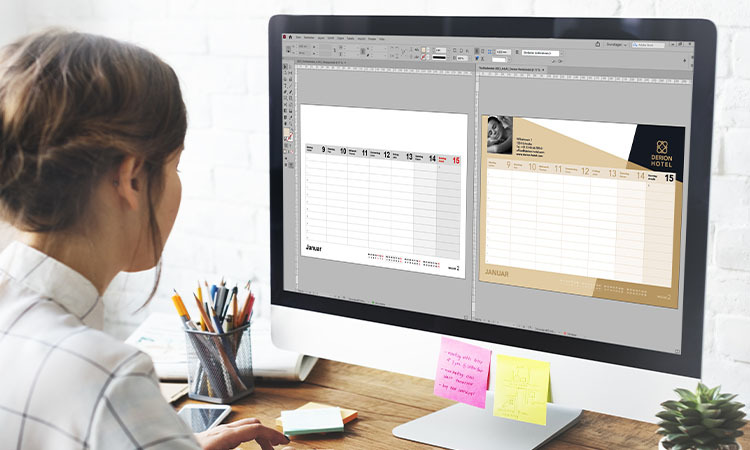
While we're on the subject of print data requirements, let's go straight to one of the most common mistakes made when creating print data. Many problems are not caused by working incorrectly, but by the fact that information sheets or templates are not used correctly cannot be used, not to be read correctly or are no longer up to date.
Especially for more complex products such as Flags, Beach flags, Sash folders or Paper bags templates are constantly being customised by our team. Therefore, before placing a new order, please check whether there is an updated template. This saves a lot of time afterwards and avoids unnecessary correction loops.
Checklist info sheets & templates:
- Ialways download and use the latest version of the templates
- Read the information sheets before creating the print data
- Observe special specifications (format, safety distance, bleed)
3 | Small but significant errors in print data

Especially for standard print types such as Flyers, Folders or Posters we see the same problems again and again:
- Safety distances are not observed, texts or logos are too close to the edge
- Overfill (bleed) missing, resulting in white flash edges
- The font size is too small: Depending on the product, different minimum sizes apply here
- The resolution is too low
druck.at-Tip: If you are not sure whether the resolution is ideal, öopen your PDF in 100 % view. What appears blurred there will also appear blurred in print.
4 | Finishes and their specifications
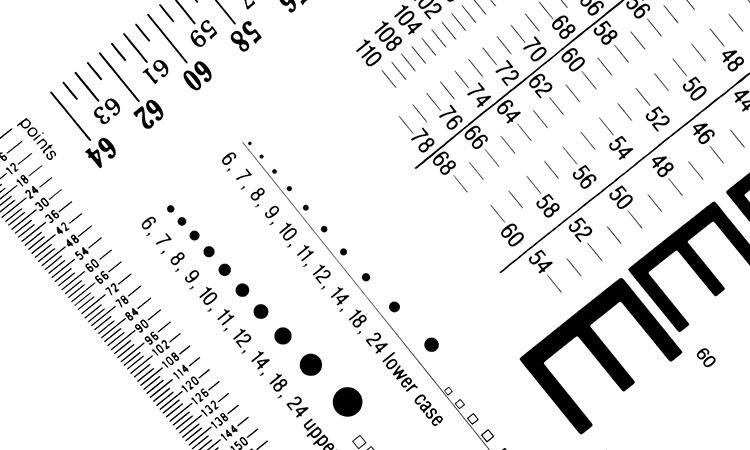
Even if it "still looks good" visually or print approval is granted, problems can occur in the background. If the specifications are not met, the order cannot technically be produced. Particularly strict requirements apply to finishing. These include, among others:
- Minimum font sizes
- Mminimum line widths
- Defined safety distances
There are special features for coloured foils, for example. Gold, silver or other coloured foils are applied with heat. This can result in a tolerance of up to 1 mm. Therefore, film elements should do not lie directly on CMYK edges and have no coloured contours. 3D varnish, on the other hand, can be positioned very precisely and is not subject to these tolerances.
5 | Create multi-page documents correctly
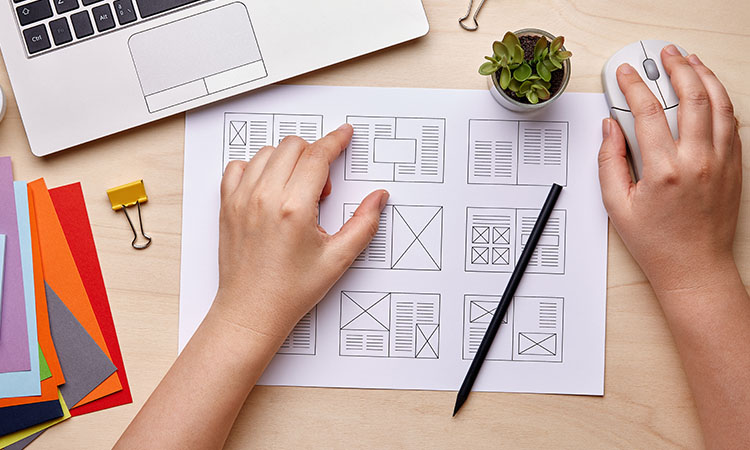
Multi-page print products such as Brochures, Folder and co. are not as complicated as they seem at first glance. Most errors do not occur during design, but when pages are created incorrectly or the page numbers are wrong (especially with multi-page products such as folders). If you follow a few simple basic rules, you'll be on the safe side. You can find more detailed information here:
Brochures & Newspapers:
- Transmission takes place as a single PDF with individual pages in the correct reading order
- Attention: The number of pages indicated on the website does not include the cover (cover = 4 additional pages)
Single-fold folder:
- Must be sent assembled (outside and inside) or as 4 individual pages in the correct order
- Always adhere to the folding dimensions as per the information sheet
Attention: Do not create the last page as the first page
Envelopes:
Here is an unprintable gripper edge of 10 mm (top) to note
Loose-leaf collection 4c4:
10 pages ordered correspond to 5 sheets printed on both sides (Attention: These are not 10 individual sheets of paper)
We asked our prepress professionals for the ultimate tips for your print data. You can find them in our blog post on the 5 tips from our prepress department.
Conclusion: A quick look at the info sheet is always worthwhile
Most print data errors are not caused by a lack of expertise, but by time pressure or carelessness. A quick glance at the information sheets, layout templates or print data requirements for downloading and a final check of the file before uploading is often enough. This saves you queries, delays and ensures you get exactly the print product you want.
druck.at-Tip: We offer a wide range of services such as partner graphic studios, our online designer and information on creating print data. If you are not 100% sure about your print data, please take advantage of our print data check.